By NFC Visiting Cards Editorial Team | Published | Updated | Using your card
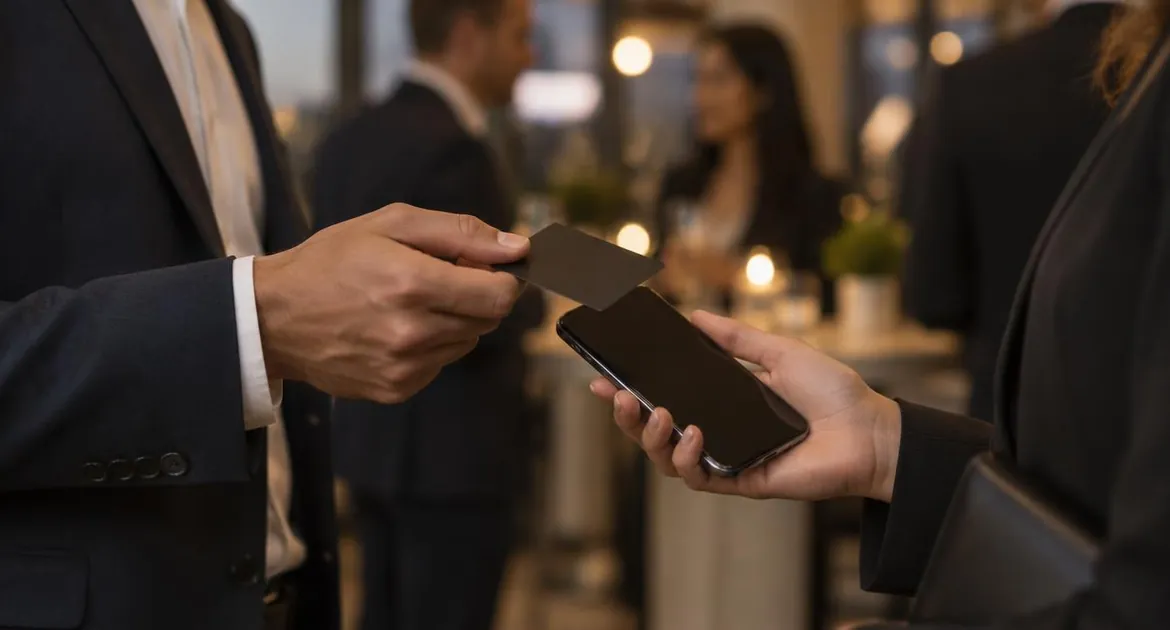
An NFC visiting card does its job in the few seconds when you hand it over. This guide is about those seconds: what to say, where to hold the card, what to do if the tap does not work and how to make sure your details end up in the other person's phone.
If you are new to the card itself, our guide to how NFC visiting cards work explains the chip, the QR code and the profile behind them.
Before you hand it over
A smooth handover starts before the meeting.
- Tap your own card first. Check it opens your profile on your phone, with your name, role, phone number and email at the top.
- Check your links. A booking link or portfolio that opens an error page is worse than no link at all.
- Know where the reader is. On an iPhone, the reader is at the top of the back, near the cameras. On Android phones it is often in the middle of the back, but it varies by model.
- Keep the card where you can reach it. A card holder or the front pocket of a wallet is quicker than the bottom of a bag.
If your card has not been set up yet, our guide to setting up your NFC visiting card walks through it, from delivery to the first tap.
What to say
You do not need a speech. A short, plain line works best, because it tells the other person what to do.
- "Can I tap my card on your phone? It saves my details."
- "Hold your phone out and it will open my contact page."
- "If the tap doesn't work, your camera can scan this code."
Skip the technology unless they ask. People want to know what will happen, not how it works. If they are curious, it is enough to say the card has a chip that opens a web page, a bit like a contactless bank card.
Where to hold the card
Hold the card flat against the back of their phone. Start near the top for an iPhone and towards the middle for an Android phone. Keep it still for a second or two. Moving it around quickly makes the tap less reliable.
A few things help:
- The phone must be awake and unlocked. A locked or sleeping phone ignores the card.
- Thick cases and magnetic accessories get in the way. If you can see one, go straight to the QR code.
- Metal cards have a tap spot. Find the area that reads best on your own phone and hold the card that way. Our metal NFC visiting card guide explains why.
- Let them hold their own phone. Ask them to hold it out and bring the card to it. Taking a phone out of someone's hand is rarely welcome.
When to offer the QR code
The tap works on iPhone XR or later and on Android phones with NFC switched on. Other camera phones can scan the printed QR code, which opens the same profile.
Offer the QR code straight away when:
- the phone looks older, or has a thick case;
- the first tap does nothing after a couple of seconds;
- you are sharing your details on a video call or from a slide;
- the other person would simply rather use the camera.
Offering the code is not a failure. It is part of the card. Our guide to NFC vs QR code visiting cards explains when each one is quicker, and our guide to which phones read NFC visiting cards covers the phones themselves.
Making sure they save your contact
Opening your profile is only half the job. The other half is getting your details into their contacts, so they can find you later.
When the profile opens, point to the save-contact button and say "that button adds me to your contacts". Their phone may ask them to confirm before it saves.
If they are busy, do not wait over them. The profile stays open in their browser and they can save you a little later. You can also ask for their details in return. With the Business Add-ons plan, your profile can collect enquiries and contact leads, so people can send you their details from the same page.
What to do in each situation
| Situation | Tap or scan | What to say |
|---|---|---|
| One-to-one meeting | Tap | "Can I tap my card on your phone? It saves my details." |
| Networking event, standing | Tap | "Hold your phone out and I'll tap it." |
| Group around a table | Scan, or pass the card round | "The code on my card opens my details for everyone." |
| Video call or presentation | Scan | "Scan the code on screen to open my details." |
| Older phone or thick case | Scan | "Your camera can scan this code instead." |
| Stand or shop counter | Tap or scan | "Tap here or scan the code to save our details." |
| Someone asks for a paper card | Either, or leave the card | "This one opens my details on your phone. You can keep it." |
Etiquette at meetings
- Ask first. A tap involves someone else's phone. "Can I tap my card on your phone?" keeps it polite.
- Pick a natural moment. The end of a conversation, when you would normally swap cards, is usually right.
- Keep it short. One tap, a word about the save button, and back to the conversation. It is not a product demonstration.
- Follow up. If they shared their details, send a short message after the meeting so the tap turns into a conversation.
Etiquette at networking events
- Keep the card in your hand as you move around the room, so the handover is quick.
- Use the QR code for groups. Holding up the card for three people to scan is easier than three taps.
- Do not tap uninvited. Even at a busy event, ask before you bring a card to someone's phone.
- Note who you met. With Business Add-ons, contact leads and the CRM help you keep track. Otherwise, a quick note on your phone after each conversation does the same job.
Keeping it or giving it away
An NFC visiting card works in two ways. You can keep it and tap it on each person's phone, or give it away, as you would a paper card. Both are fine.
If you give a card away, the other person can tap it again later. It always opens your current profile, because you edit the profile, not the card. If you expect to leave cards with people often, PVC is the lowest-priced material. Our guide to PVC NFC visiting cards covers the colours and prices.
When the tap does not work
Run through these in order, and stop as soon as one works:
- Check the phone is awake and unlocked.
- Hold the card still at the top of the back of the phone, then slide it slowly towards the middle.
- On Android, check that NFC is switched on in the phone's settings.
- If there is a thick case or a magnetic accessory, use the QR code.
- If nothing works within a few seconds, use the QR code.
You do not need to fix someone's phone to share your details. Moving to the QR code is quicker than a third or fourth try, and it opens exactly the same profile.
Frequently asked questions
Do they need an app to read my card?
No. On iPhone XR or later and on Android phones with NFC switched on, a tap opens your profile in the phone's browser. Other camera phones can scan the QR code.
Where should I hold the card on an iPhone?
Near the top of the back of the phone, close to the cameras. Hold it still for a second or two.
Where should I hold it on an Android phone?
It varies by model. Start in the middle of the back and slide the card slowly until the phone responds.
What if the tap does not work?
Point to the printed QR code. Their camera opens the same profile.
Do I have to give the card away?
No. You can keep the card and tap it on each phone, or leave it with someone so they can tap it again later.
How do they save my contact?
They tap the save-contact button on your profile. Their phone may ask them to confirm before it saves.
What should I say when I hand it over?
Something short, such as "Can I tap my card on your phone? It saves my details."