By NFC Business Cards Editorial Team | Published | Updated | Using your card
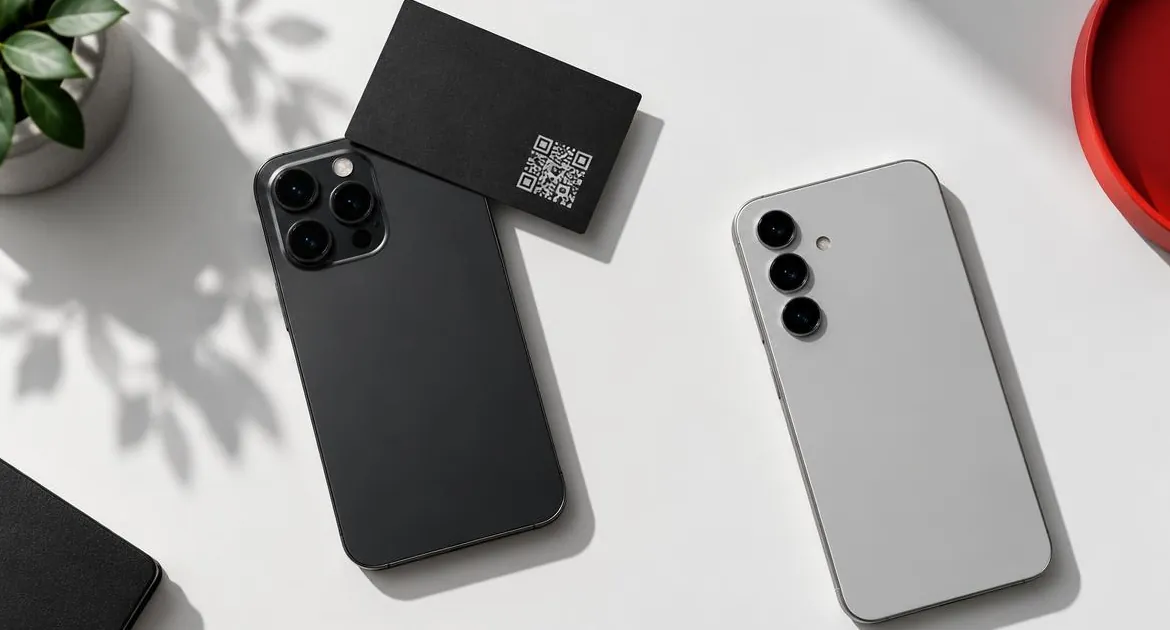
Most people you meet will be able to tap your card. The few who cannot will scan the QR code instead. This guide explains which phones read the card, where to hold it and what to do when a tap does nothing.
For the bigger picture of how the chip and profile work, start with our guide to how NFC business cards work.
The short version
| Phone | How it opens your card | What to do |
|---|---|---|
| iPhone XR or later | Tap, no setup | Hold the card near the top of the back of the phone |
| iPhone 7, 8 or X | Not in the background | Scan the QR code with the camera |
| Android with NFC switched on | Tap | Hold the card near the middle of the back |
| Android with NFC off, or without NFC | No tap | Scan the QR code, or switch NFC on in settings |
| Any other phone with a camera | QR code | Point the camera at the code |
The phone needs to be awake and unlocked in every case.
iPhone
iPhone XR, iPhone XS and every later model read NFC cards in the background. Nothing needs to be installed or switched on. When you hold the card near the phone, a notification appears at the top of the screen. Tapping it opens your profile in Safari.
Two things stop it working:
- The screen is off or locked. Wake and unlock the phone first.
- Apple Pay or Wallet is open. Close it, then try again.
Older iPhones, from iPhone 7 to iPhone X, do not read cards in the background. They can read them through a control in Control Centre, but most people find it quicker to scan the QR code.
Where to tap an iPhone
On an iPhone the NFC reader sits near the top edge, close to the rear cameras. Hold the card flat against the top of the back of the phone. Tapping the middle or bottom of an iPhone is the most common reason nothing happens.
Android
Most Android phones from recent years have NFC. It is usually on already. On some phones it is switched off by default, or after an update.
To check, open Settings and look for NFC under a menu such as "Connected devices", "Connections" or "Connection preferences". Many phones also have an NFC tile in the quick settings panel you pull down from the top of the screen.
When the card is read, the phone either opens the link or shows a prompt to open it. Some lower-priced Android phones do not include NFC at all. For those, the QR code is the way in.
Where to tap an Android phone
The reader's position varies by maker and model. On many Android phones it sits in the middle of the back, around or just below the camera. On some it is nearer the top. If the first tap does nothing, slide the card slowly across the back until the phone responds. Remember the spot for next time.
Why a tap sometimes fails
Most failed taps come down to position, settings or something in the way. Try these in order:
- Wake and unlock the phone. A locked or sleeping phone ignores the card.
- Move the card. Top edge first on an iPhone, then the middle of the back on Android. Hold it still for a second.
- Check NFC is on. On Android, look in the connection settings.
- Remove what is in the way. Thick cases, metal plates, magnetic mounts and wallet cases can block the signal.
- Close payment screens. If a payment app is open, close it.
- Try the other side of the card. With metal cards in particular, one side or area usually reads best. Our guide to metal vs PVC vs wood NFC business cards explains why.
- Scan the QR code. If none of this works within a few seconds, use the code.
You do not need to fix someone's phone to share your details. Offering the QR code is quicker than a third or fourth try.
Phone cases and accessories
Thin plastic and silicone cases rarely cause problems. Things that often do:
- thick rugged cases;
- metal plates for magnetic car mounts;
- magnetic wallets or card holders on the back of the phone;
- a stack of other cards between the card and the phone.
If a tap fails and the phone has a thick case or a magnetic accessory, try the QR code rather than asking the person to take their phone apart.
Tablets and other devices
Many tablets do not include NFC, and those that do often place the reader somewhere unexpected. The camera can still scan the QR code. Laptops and desktop computers generally do not read NFC cards.
Making the first tap go smoothly
Most people have never been handed an NFC card, so a short prompt helps:
- Say "tap here to save my details" and hold the card where their phone's reader is likely to be.
- If they have an iPhone, point to the top of the back of the phone.
- If nothing happens after a couple of seconds, point to the QR code.
- Make sure your profile opens with your name and a clear save-contact button, so the moment is not wasted.
A little practice helps too. Tap your own card on your own phone and on a friend's phone with a different system, so you know where to hold it. Our guide to how to use an NFC business card covers what to say at the handover.
Checking your own card before an event
Five minutes before an event or meeting, run through this:
- Tap the card on your own phone and check the profile opens.
- Scan the QR code with your camera and check it opens the same profile.
- Make sure your name, role, phone and email are at the top.
- Check every link still works, especially booking and portfolio links.
- If you can, tap it on a phone that runs the other system, iPhone or Android, so you know where to hold it on both.
Doing this once means the first tap in front of someone else is not a surprise.
Why the QR code matters
The QR code is not a fallback you will rarely use. It is part of how the card reaches everyone:
- it works on phones that do not read NFC;
- it works when NFC is switched off and the owner does not want to change settings;
- it works on a screen, a slide or a printed sign;
- some people simply prefer the camera.
Modern iPhone and Android cameras recognise QR codes without a separate app. The code and the chip open the same profile, so it does not matter which one someone uses.
You can see the chip and printed QR code on every material on our NFC business card page.
Will everyone be able to open it?
No card can promise that. What the card does is give two ways in. Phones that read NFC open it with a tap. Other phones with a camera scan the code. Between the two, most people you meet can open your profile in seconds.
If you want to know what someone sees when they tap, or whether tapping is safe for them, read our guide to whether NFC business cards are secure.
Frequently asked questions
Does the other person need an app?
No. iPhones and Android phones read the card with their built-in NFC reader and open the profile in the browser. The QR code opens in the standard camera.
Which iPhones read NFC business cards with a tap?
iPhone XR and every later model read the card in the background with no setup. Older iPhones can scan the QR code with the camera.
How do I switch NFC on on Android?
Open Settings and look for NFC under "Connected devices", "Connections" or a similar menu. Many phones also show an NFC tile in quick settings.
Can a phone read the card through a case?
Usually, yes. Thin cases rarely cause problems. Thick cases, metal plates, magnets and wallet cases can block the signal, so use the QR code if a tap fails.
Why does nothing happen when I tap an iPhone?
The most common reason is the position. Hold the card at the top of the back of the phone, near the cameras, with the screen unlocked.
Does opening the profile use mobile data?
Yes, a small amount. The profile is a web page, so it loads over mobile data or Wi-Fi like any other website.